ZEISS Knowledge Base
Help
ZEISS Knowledge Base

Troubleshooting issues

The first step in troubleshooting licensing issues is to read the content of the error message when you are trying to open the software. There are four most likely scenarios:

  • The license can be found but the number of users exceeds that allowed by the license
  • No license can be found
  • A license can be found but it is out of date
  • Hardware changes have been detected and the license has been disabled.

License Count Exceeded

This is most likely in a scenario with a network license and multiple users. If your license permits up to 5 users, the sixth person who tries to log on will get this message. In this scenario you should wait for one of the other users to relinquish the license by closing the application. In extreme scenarios where a user fails to relinquish the license for whatever reason, their license can be revoked and the session terminated from the Sentinel Admin Control Center on the license server machine. Double check with all users of the software before taking this step as there may be a valid reason for a user to use a license for several days (e.g. running complicated analysis on a very large dataset).

No License Found

The license not being found can be the result of a variety of scenarios, but most likely one of the following:

  • If you have a hard key (dongle), it may be plugged into a non-functioning port, or the key may be broken.
  • In that case, first, try to find your key and make sure it is plugged into the machine. If the key is present but doesn't light up it could indicate one of two possible issues. Either the drivers are not installed or configured properly, or the key or port it is plugged into is broken. Try unplugging the key and plugging it into another port and wait a minute for the dongle to light up. If this doesn't work, try reinstalling the drivers by reinstalling the license tool. Your local IT support may also be able to assist in identifying issues with USB dongles. If none of the above work, log a support ticket using the link at the top of the page to arrange a replacement.
  • You have a software key but the license was disabled from the system.
    • The most common fix is a simple re-installation of the drivers (see above)
    • The license can also be disabled in other circumstances (e.g. changes to a VM, license transfer). Please make a not of the exact error message and contact arivis support in such cases.
  • You are using a Network license but the connection to the license server has been lost. In those cases, you should first check that the license is functioning correctly on the license server. Please see below.

License is Out of Date

If your license is Out Of Date it is most likely because you installed a newer version than you are licensed for. This can happen because you installed the current version as part of a trial or maybe because you reinstalled the software using the current installer for whatever reason. If so, please log a support ticket using the link above and a member of the support team will contact you to provide download links for the version your license is valid for. A member of our Sales team may also contact you to discuss upgrade options.

Hardware changes detected

Soft licenses are linked to the specific hardware of the computer on which they are activated. In most cases, the hardware configuration is fairly unlikely to change significantly and so it is a good way to make sure that the license is running on the computer it was activated on to limit unlicensed copying of the license. This article on activating licenses also covers how to transfer the license to another machine. So if you need to transfer your license to a new computer please follow the instructions there. However, it is also possible to activate a software license on a Virtual Machine. But VMs can be copied and transferred to another computer very easily, which is part of their appeal, but so could licenses attached to that machine, which is not allowed by the terms of the license agreement. Therefore, the licensing system has been designed to detect changes to virtual machines that could indicate the VM has been duplicated. If such changes are detected the license will be disabled and it is not possible to restore the license from that point. Please check this article for choosing license configurations if you intend to use Vision4D on virtual machines. If your license has been disabled that way, please log a support ticket using the link at the top of this page and a member of the support team will contact you to discuss options.

Unable to contact a network license server

If you have a network license but are unable to connect to it when starting the software there are a range of possible obstacles and solutions.

First, double-check the actual error. If you see one of the errors mentioned above with a network license, you will still need to resolve those issues as mentioned above first.

After that, there are a few things to check, both on the local client machine and on the remote license server.

You could start by opening Vision4D on the computer that runs the network license server to see if the license is running correctly. However, most network licenses are configured on systems where only the license server is installed, not the Vision4D application. On this kind of machine you should start by opening a web browser and going to HTTP://localhost:1947 to access the Sentinel Admin Control Center. 
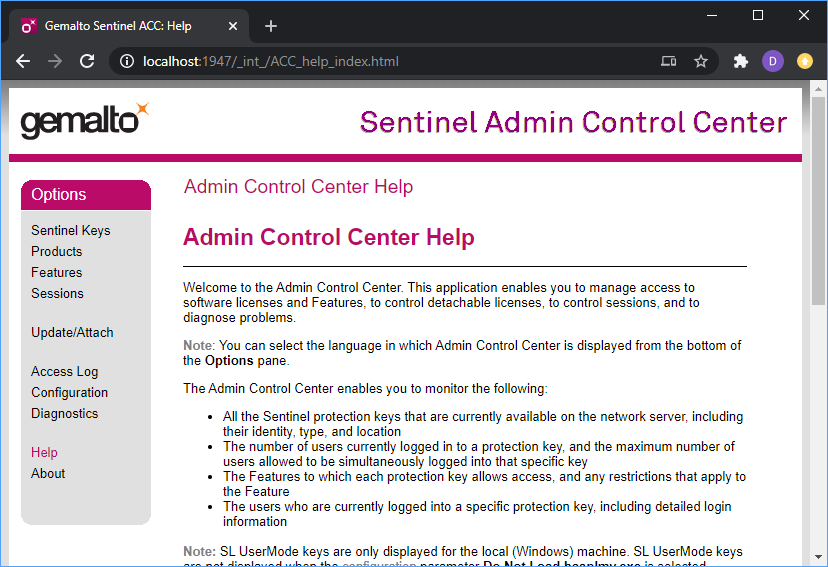
Clicking the Sentinel Keys tab on the left will show you all the licenses currently running on the machine and give you a lot more information about the status of these licenses. 

Keys with vendor ID 66215 are licenses for arivis products. If you do not see a license with that vendor ID then no arivis license is running on this machine. The checks mentioned above regarding hard and soft keys are also relevant here.

If you see a license for that vendor ID, you can check what type of key this is. Network licenses running on USB dongles will show up with a red USB key icon to match the physical key on which the license is configured. If you see a USB dongle icon, but it is not red then it may be that you do not have the right type of key for network licenses and you should open a support ticket using the link at the top of this page. Soft licenses will be indicated by a Certificate icon in the Configuration column.

Clicking on the Features button next to the arivis license will show you if the license is valid. If the key is expired, please contact sales or support for more info.

Assuming everything on the Sentinel Keys page is OK, the most likely problem is going to be a network port configuration. Make sure your port is configured to enable communication on port 1947 for TCP/IP as mentioned above.

You should also check that no exceptions exist for access from clients under the Configuration tab.
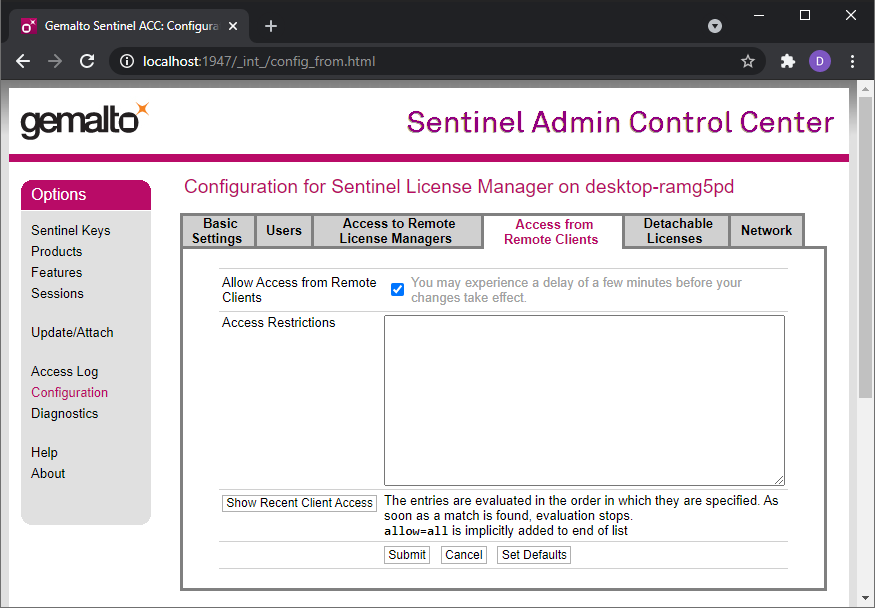
If the network configurations and the license is OK on the server side, you should then double-check the settings on the client side.

First, as with the server, make sure that port 1947 is open for TCP/IP on the machine as mentioned above.  If you need to find where it is blocked, run a trace route from the client to the server and inform your IT of the address it stops at.

Next, open the Sentinel Admin Control Center by opening your web browser and going to http://localhost:1947. In the Access to Remote License Managers, you can enter the IP address of the license server to force the system to check that specific address. this is especially useful if using a VPN.  Please note, when clicking submit on the IP address field, you may only see a very brief flash indicating it has accepted the entry.  To verify, click on a different menu and click back on the Access to Remote License Managers tab to see that the IP Address is still present.

If you are unable. to open the Sentinel Admin Control Center from your browser this usually indicates either that the sentinel drivers are not installed correctly or that the port is blocked. Check with your IT to re-install the driver with administrator privileges if necessary. 

If all this fails, please contact arivis technical support who can try and diagnose any issues.

Impressum
Carl-Zeiss-Strasse 22
73447 Oberkochen
Germany
Legal