Creating Positions by Carrier
- You have selected and calibrated a sample carrier template.
- You are on the Acquisition tab.
- To obtain a complete overview of the sample carrier, zoom out of the view using the mouse wheel. If necessary, use the panning tool (press Alt and the left mouse button) to move the stage view as needed.
- In the left toolbar in the Positions section, click on the Setup by sample carrier button.
- The Positions Carrier Toolbar is displayed as the top toolbar.
- Select the containers in which you want to distribute positions by pressing the Ctrl key and clicking on the relevant containers.
- In the top toolbar adjust the Number of required positions and the Bias where the positions should be located. Alternatively, if you want to create the positions as a Grid, adjust the Columns, Rows, and Overlap.
- Click on the Create button
 .
.
- The selected containers are each filled with a Position Array (group of positions).
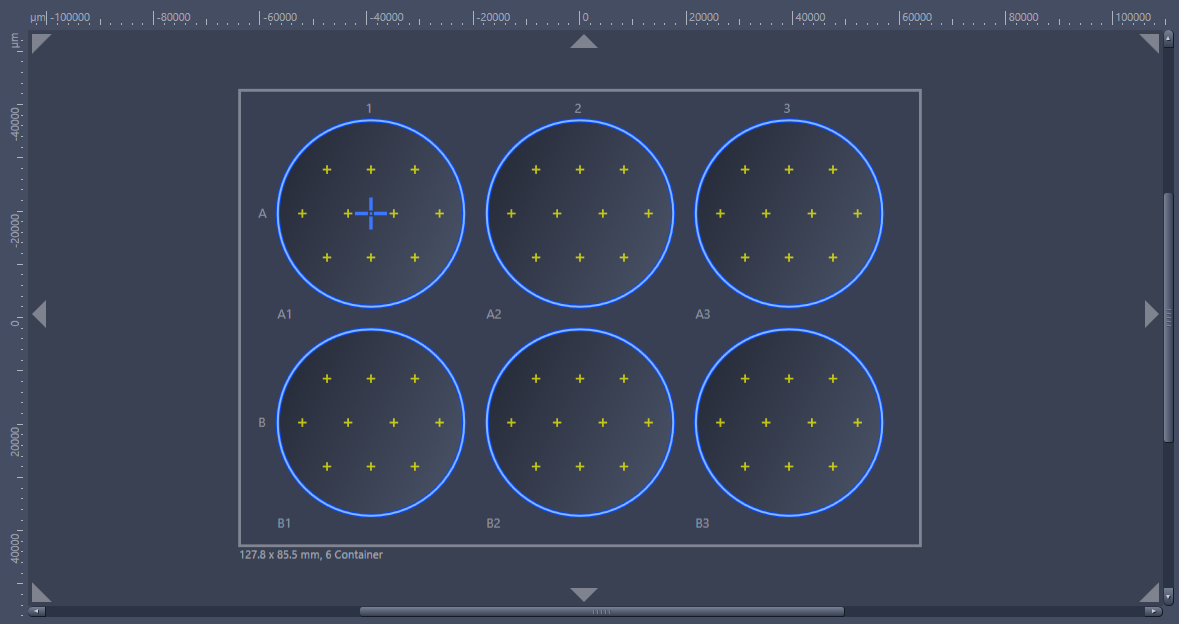
- In the Positions section of the Tiles tool, the Position Arrays are displayed in the Position Arrays list.
- You have successfully used a sample carrier to create positions.