Adding Users to a Group
- You are in the User and Group Management dialog (Tools > Users and Groups...).
- Enable User Management is activated.
- Click Groups.
- All available groups are displayed. By default, you have an Administrators group. To manage access rights for user groups, see Managing Access Rights for User Groups.
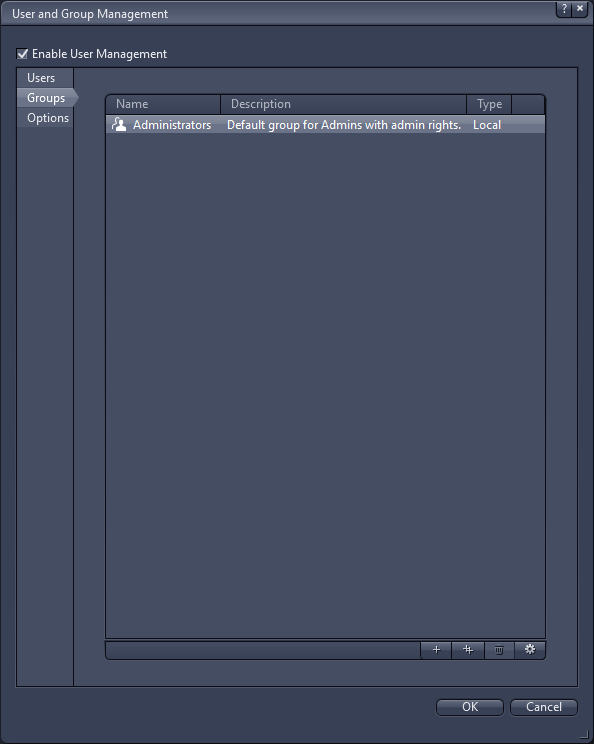
- Select the group you want to add a user to, e.g. Administrators.
- Click
 .
.
- The group properties dialog opens. Under Data > Members, all the members of the group are displayed.
- In the Members list, click
 .
.
- The Select User dialog opens.
- Select the user you want to add to the group and click OK.
- Click OK to close the properties dialog of the group.
- You have successfully added a user to the group.